
Docs → Getting started
Setup guide
A handful of one-time steps, then every import is one tap. None of this is required up front - FitDive will ask for whatever it needs the first time it actually comes up.
Install FitDive and sign in
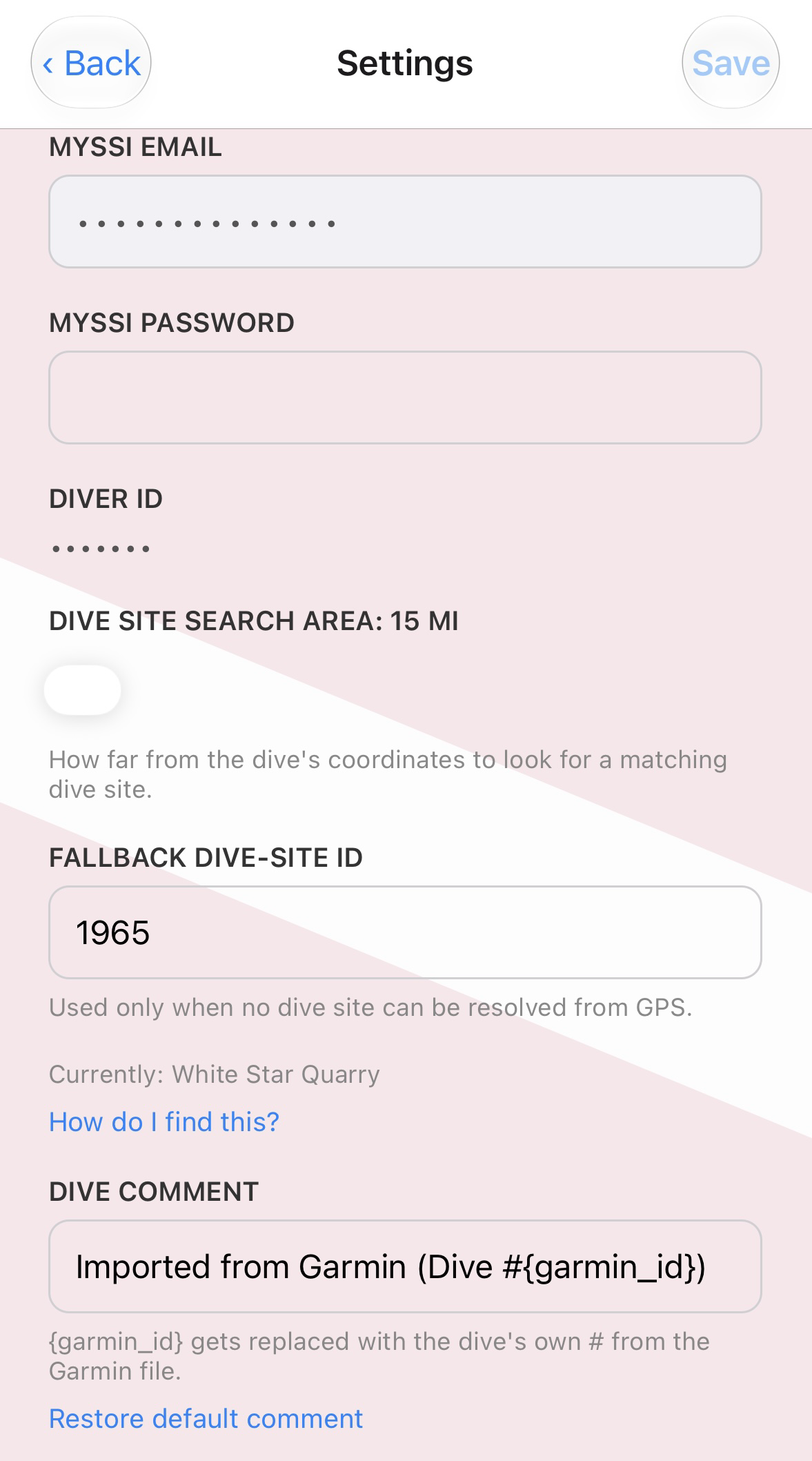
Get FitDive from the App Store, open Settings, and enter your MySSI email and password. They're stored only in the iOS Keychain on your device - never sent anywhere except to MySSI itself, exactly as if you'd typed them into their own site.
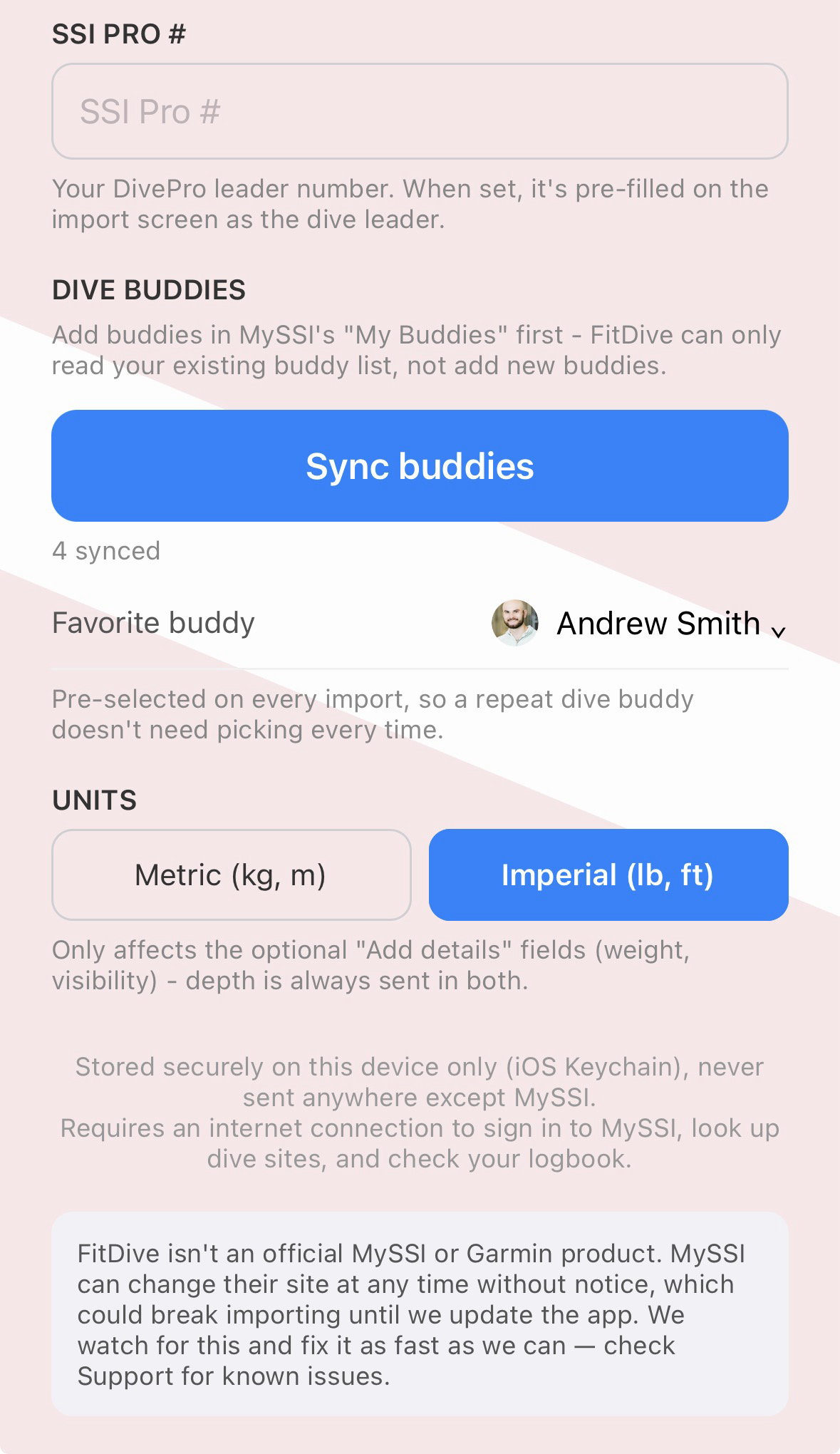
Pick metric or imperial
Also in Settings - this controls the units on the optional Add Details fields (weight, tank pressure, visibility). Everything from the Garmin file itself is unaffected.
Set a fallback dive site (optional, but recommended)
FitDive works out your dive site from GPS automatically. For the rare dive with no GPS and no phone location, it needs a fallback site to use instead. Here's how to find a dive-site ID for the site you dive most - your local shop, quarry, or home reef.
If your favorite spot doesn't have a public MySSI listing at all, you don't need a fallback for it - FitDive can add it as a private dive site with a map, right from the import screen. See Private Sites.
Sync your buddy list (optional)
Settings → Sync Buddies pulls your MySSI buddy list, with photos, so you can pick who was on a dive from a searchable list instead of typing names. You can also set a favorite buddy that's pre-selected on every import.
Share your first dive
In the Garmin Dive app: open the dive, Export Dive as FIT File, then choose FitDive from the share sheet - or pick a .fit file directly from FitDive's own home screen. See Using FitDive for what happens next on each screen.
Already have years of dives on your Garmin? See importing your whole Garmin history.